Electronic chess boards
If you have an electronic chessboard (E-Board), chances are you can connect it to PGN Master
The following e-boards are currently supported:
Certabo (Bluetooth and USB)
Chessnut Air
DGT Classic Bluetooth
DGT Pegasus
Millennium Chesslink (Millennium eOne, Exclusive, Performance)
Square Off Pro
Special features
With an e-board, you can simply move the pieces on the board to input moves. Make sure you start with a synced state, i.e. the board and the app are in sync. Go backwards in the current variation by simply undoing the moves you played in reverse order on the board.
Autoplay
If you are using autoplay and the e-board has LED indicators, the app will show on the board which pieces need to be moved. See this video for an example.
Position setup
If the e-board has piece recognition, you can simply place the pieces on the board and the position in the app will reflect the position on the e-board. See this example video.
If the e-board does not support piece recognition, you need to set up the position as usual and place the pieces on the e-board accordingly.
Guess the move
If you make a wrong move on the E-board in guess the move mode, a tone will sound to alert you that the move was wrong and the LED indicators will indicate that you need to undo the wrong move.
Connection
To connect an e-board select the e-board in the preferences (see Select e-Board) and select the bluetooth or USB symbol from the action menu.
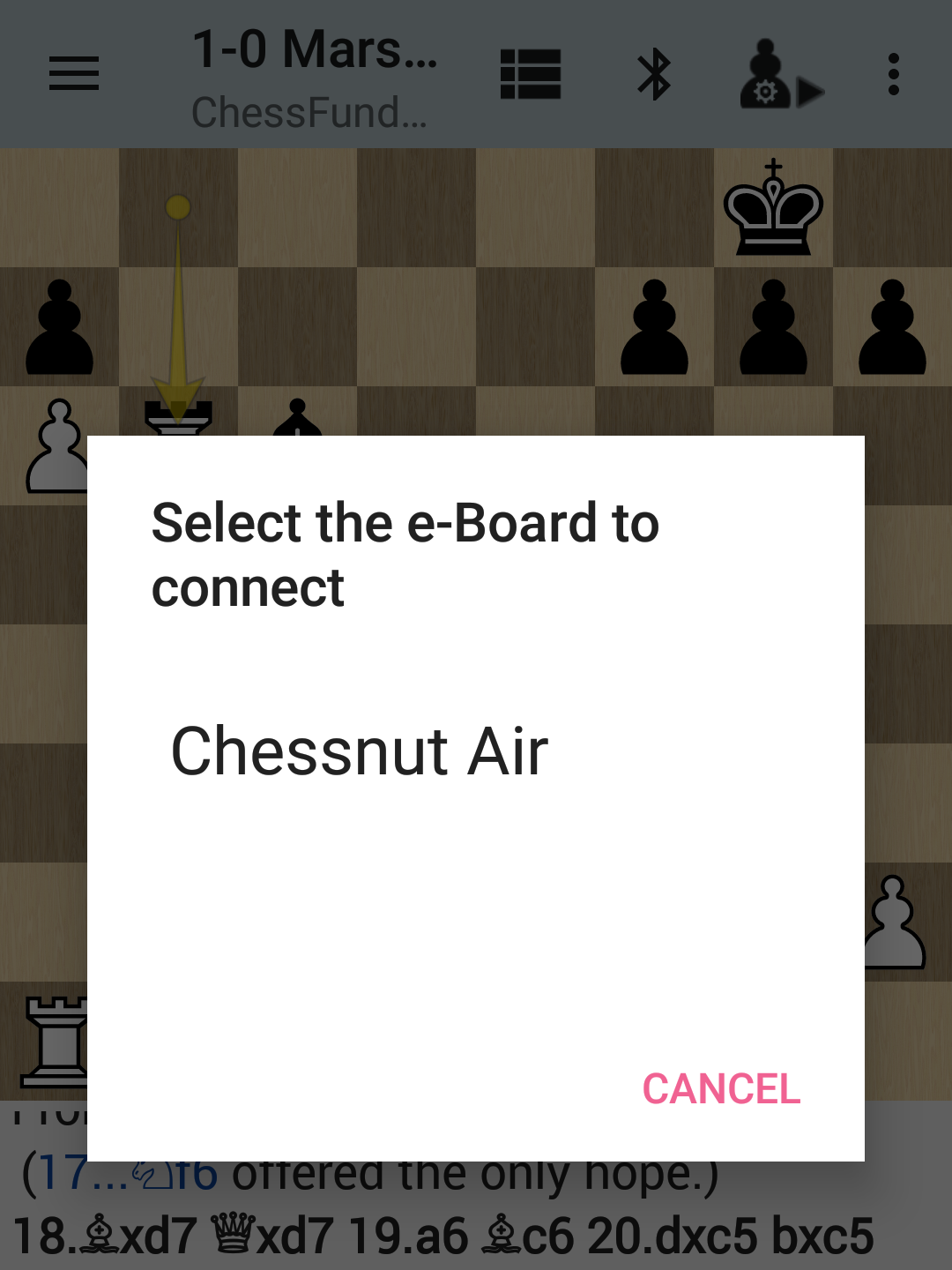
E-Board connection.
Note
If you’re connecting via Bluetooth, turn off any Bluetooth devices you’re not using for the best experience. Also make sure you have granted location permissions and location services are enabled.
E-board dialog
- After connection, the E-board dialog is accessible in the action menu. The icon is either displayed
as a pawn with a tick: The e-board and the app are in sync

as a yellow pawn with a dot: The e-board and the app are not in sync

When the e-board is out of sync, you usually have to make the move that is shown on the display or on the e-board.
The options and buttons in the e-board dialog vary depending on the connected e-board type:
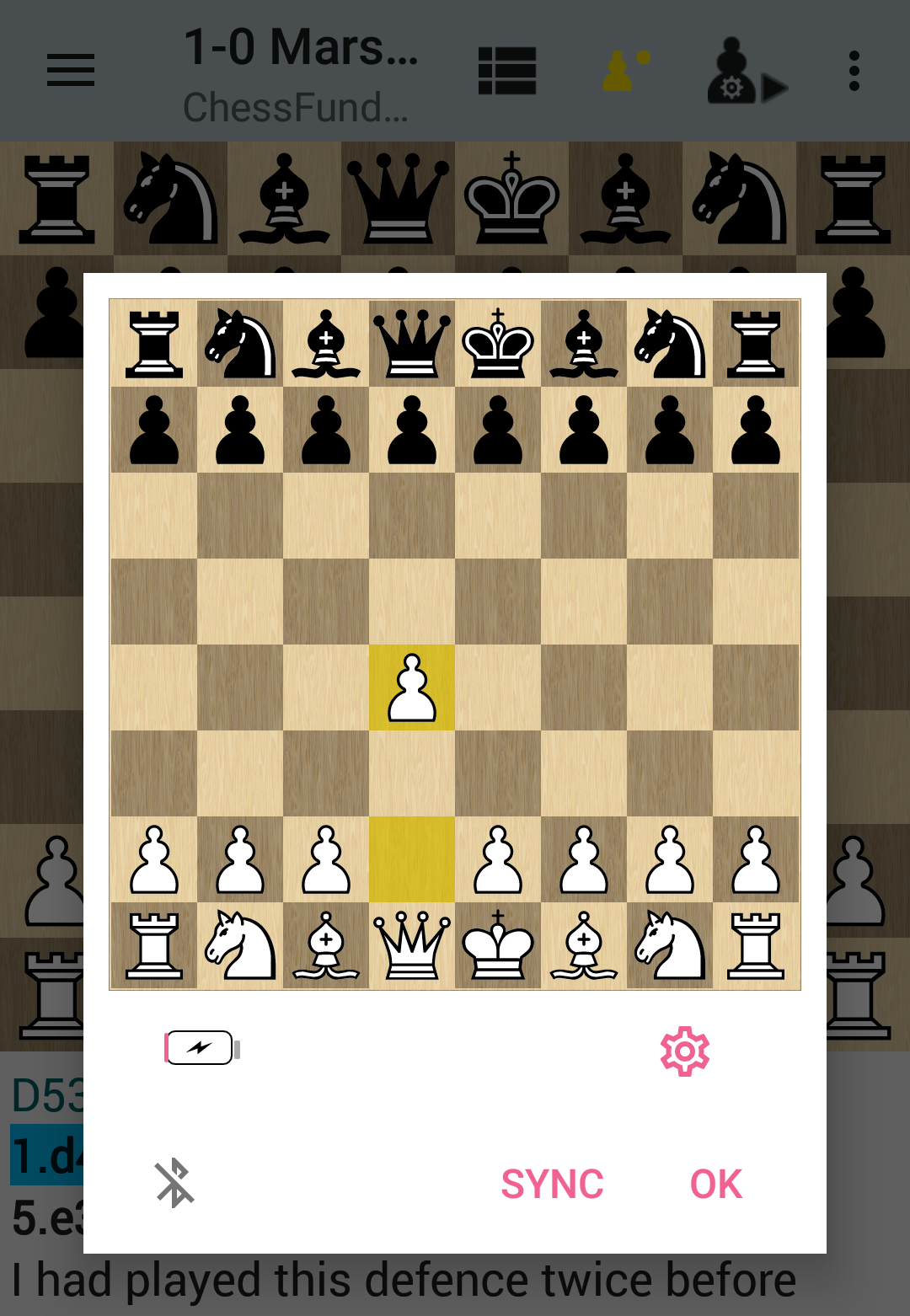
E-Board dialog.
Disconnect symbol
Selecting the disconnect symbol disconnects the currently connected e-board immediately.
Cogwheel
Further settings specific to the e-board type.
CALIBRATE
Available for Certabo e-boards. The calibration needs to be done once to tell the app which piece is which. Place all pieces in the starting position. Put extra queens on D3 and D6. A new calibration removes all older calibration results.
SYNC
Available for e-boards that don’t have piece recognition. If you cannot sync the e-board with the app by placing the pieces on the same fields then use the sync button to sync the e-board with the app.
OTB
Only available for Chessnut e-boards. Use this button to transfer OTB games stored on the device. The games are removed from the e-board after the transfer is complete.
Note
Make sure you don’t make illegal moves in OTB games. If you make an illegal move, all moves made after that move are discarded.
See this example video.